
Learning about binary code can be daunting for some students. Some kids will switch off when they realise it is Math! “Why are we doing math in coding class?” was the cry of outrage put to me during Friday’s class. “How come we aren’t working on the computers?” was the next question. It took a lot of convincing that what we were about to do would be interesting and fun. And fun it was, so much fun that I felt it was one of the best classes we had had. A 0101 (5) out of 0101 (5) or five star class. Everyone participated, they all enjoyed the challenge and we all learned something new, staff included.
We worked on unplugged activities, no electronic technology needed. Who needs a computer or device when you have hands?
We started off by watching two short videos available on YouTube (Ok, so there was a little bit of technology involved). There is a lot of different videos available to watch which teach the basics of binary code (Base Two). You do need to watch a few yourself to see what will work for your class. This is why we watched two, differentiation, meeting the needs of all my students. The first one we watched was ‘What are binary numbers?‘ with James May, I thought the celebrity status would help. They all know James May from Top Gear, but at the end of the video I got comments from some students “I’m confused” and “That was too confusing.”. Hence, video two ‘Intro to Binary Numbers‘ a very simple and visual explanation.
We then discussed the concept and I drew how binary numbers worked on the front board. One of the things which confuse the kids is that the numbers run right to left, not left to right, they need to see this. I then used a set of dot cards on the front board to demonstrate how it works. You can get the binary card PDF and activity ideas from the csunplugged.org site. I enlarged the individual cards to A5 size and made up seven sets, printed, glued onto coloured card and laminated.
Once the majority got the hang of it we got our textas out and drew the binary numbers on our fingers. Who doesn’t like drawing on their hands? The trick with finger binary activities is the direction, the kids must write the numbers on the correct finger and facing the right way. The problem is which way is the right way, many of the finger activities online have the hands facing a different direction. You need to pick which way you want to go with and stick to it. I used palms out to audience which means the number one is on the pinky finger. A good example of palms out can be shown here.
Image from Rosio Pavoris’s blog (link above)
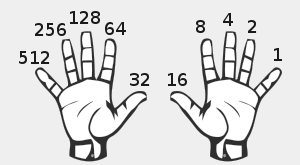
Binary fingers image from Rosio Pavoris blog
We then played several games to get our heads thinking and working with binary numbers. First up I called out numbers for the class to make, they held up their fingers to show me the answer. Be aware that with older students’ number 4 becomes very popular. We all had a 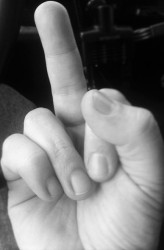 good laugh over this, tried it out on each other (this may be the only time that you can demonstrate your true feelings) and moved on. Then we paired up and challenged our partners to make various numbers. I then handed out the binary card sets to each group; it gave those struggling with the finger binary an easier visual method. While the class was practicing using cards and fingers, I went to each group and checked if each student understood the process and could demonstrate for me. This was lots of fun and the students enjoyed showing off their new skill.
The next challenge was writing the numbers in binary, ones and zeros. I called numbers from the front, they made them using either cards or fingers and then told me how to write it on the board in binary code. For instance,
10 = 8 + 0 + 0 + 2 = 1010
13 = 8 + 4 + 0 + 1 = 1101
Next we had a competition seeing who could calculate the numbers the fastest, our Education Assistant working with our Auslan student won!
During our next class we will keep working on converting decimal numbers to binary numbers, writing them as binary numbers and then explore the alphabet in binary (ASCII). It should be just as fun.
There are many different binary code/base two teaching and learning ideas and resources available online for you to use, here is a few that I like:
- Math is fun, binary number systems
- Math is fun, binary fingers
- Conversion Between Decimal and Binary Representations PDF
- Computer Science Unplugged, binary activities PDF
- Binary Puzzles
- Binary Fun game
- Binary Bonanza game
- Codeorg, binary bracelets Good for young students.
- Finger Values
- Binary Numbers video- Math Bites with Danica McKellar *For older students, humour is not suitable for younger students.
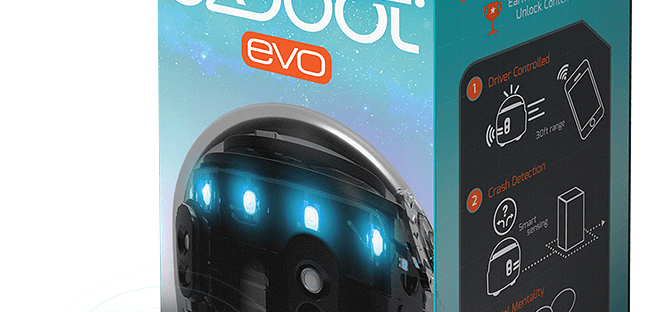
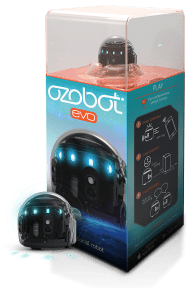 The new Evo has sensors which allow it to interact with objects in the environment, it has new lights, a speaker, can make sounds to suggest emotions and allows users to communicate through social media. You can use the Evo with tablets and smartphones. Much like our old favourite 2.0 Ozobot it can be programmed with either colour codes or block coding. New codes have been developed to match the new features, students will enjoy adding sound to their programming.
 and also guide you in what you need to teach them next, with regard to operating an iPad. A couple of people had asked about check lists, so that we can tick off what they know, record the data and move on. I have created two different versions, Version 1. has the basic operating skills which all students should learn, plus skills often used when using a creative application (app) such as
  Version 2. has more complex operational skills which you would expect your older students to accomplish, and also has some browser skills. How you use them is up to you, a simple tick would work to indicate the student can independently use each operating feature or you could use symbols, D for developing, A for achieved, etc.
 biscitmx